Sideload FalconCast onto your Amazon Firestick or Fire TV in minutes — Downloader code 1636532.
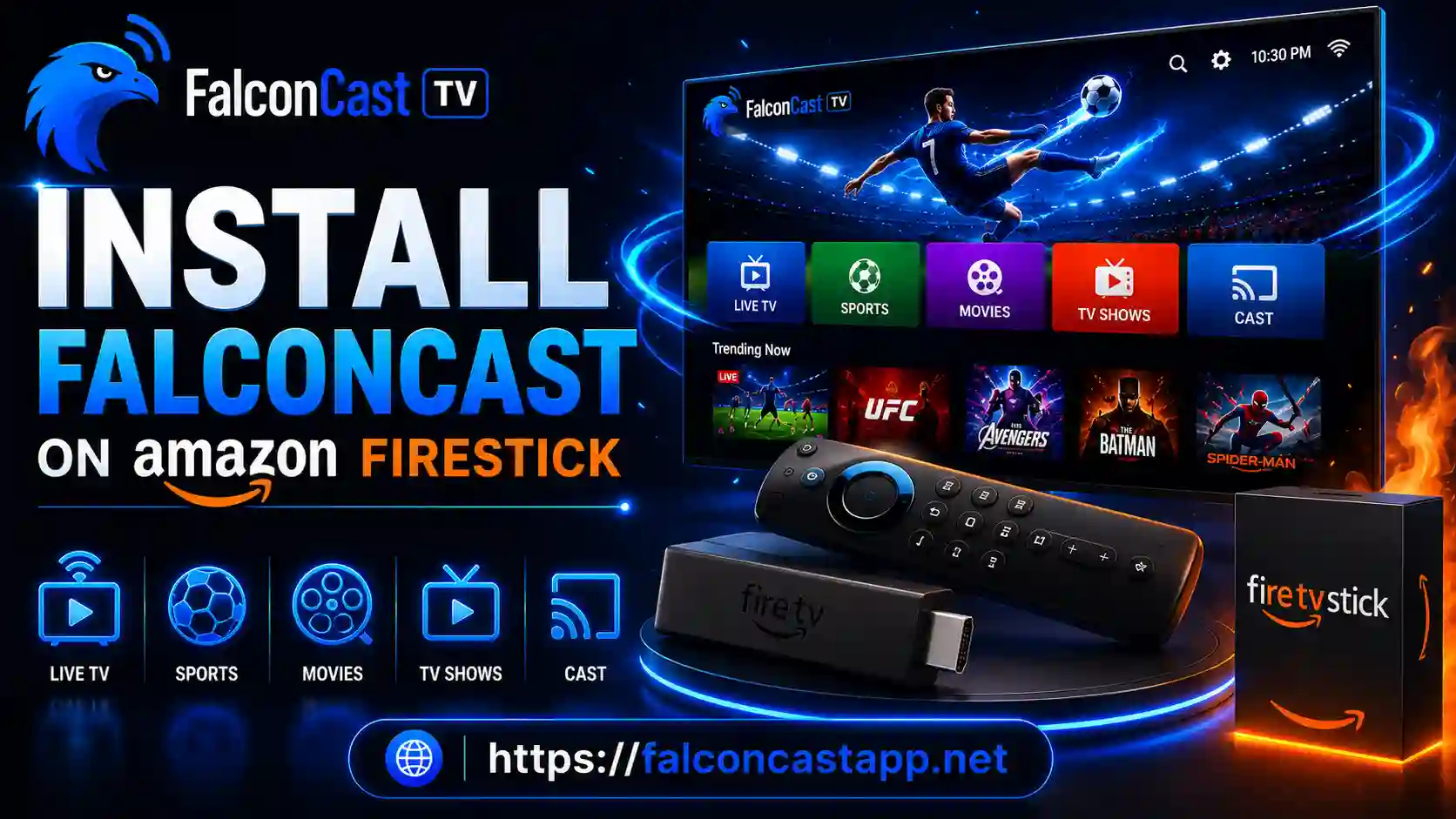
The Amazon Firestick and Fire TV run a version of Android, so you can install FalconCast by sideloading the APK with the free Downloader app. We’ve registered a Downloader code, 1636532, so you don’t have to type a long URL.
Firestick Downloader code
1636532
On your Fire TV, go to Settings → My Fire TV → Developer options and turn on “Apps from Unknown Sources” (or “Install unknown apps”) for the Downloader app.
Search the Amazon Appstore for “Downloader” and install the free orange Downloader app. It’s the standard way to sideload apps on Firestick.
Open Downloader and enter the code 1636532 (or this site’s URL), then press Go to fetch FalconCast v4.3.2.
When the download completes, select Install, then Open. Delete the APK when prompted to save space — the app stays installed.
Installing an APK usually takes less than a minute, but every now and then Android shows an error. Below are the issues you’re most likely to run into when installing FalconCast — and exactly how to fix each one so you can get back to streaming.
This is the most common message. It normally means your device is low on storage or an older copy of the app is getting in the way. Free up some space, uninstall any previous version of FalconCast, and then install the latest APK again. If Google Play Protect blocks the install, tap “Install anyway” (or briefly disable Play Protect in the Play Store settings) and continue.
A parse error means the APK didn’t finish downloading or isn’t compatible with your Android version. Delete the half-downloaded file, re-download the latest FalconCast v4.3.2 from this website, and make sure your device is running Android 5.0+ or higher before trying again.
By default Android blocks apps from outside the Play Store. When prompted, enable “Install unknown apps” for the browser or file manager you used to download the APK (Settings → Security, or Apps → Special access). You only need to do this once.
If the app installs and opens but a stream won’t load, work through these in order: update to the newest version, clear the app cache (Settings → Apps → FalconCast → Storage → Clear cache), switch to a different stream server or a lower quality inside the app, and if your internet provider blocks a particular source, connect through a VPN and try again.
FalconCast is one of the easiest and most reliable ways to watch live sports and TV for free. It’s lightweight, needs no registration or subscription, and runs smoothly across Android phones, tablets, Android TV, Amazon Firestick and even Windows through an emulator. With multiple stream qualities, fast servers and regularly updated links, it’s an excellent choice for anyone who wants live football, cricket and television without paying a monthly fee. The app isn’t on the Google Play Store because it streams third-party channels, so the one rule to remember is simple: only ever download the FalconCast APK from this official website to keep your device safe.
9.7 MB · Free · Android 5.0+